Get Vocaminary
Install the Chrome extension directly from the Chrome Web Store and start learning vocabulary while watching YouTube videos.
System Requirements
Chrome browser version 88 or higher • Works on Windows, macOS, and Linux
Installation Guide
Install Vocaminary from the Chrome Web Store in just 4 simple steps
Visit the Chrome Web Store
Click the button above to open Vocaminary's page on the Chrome Web Store.
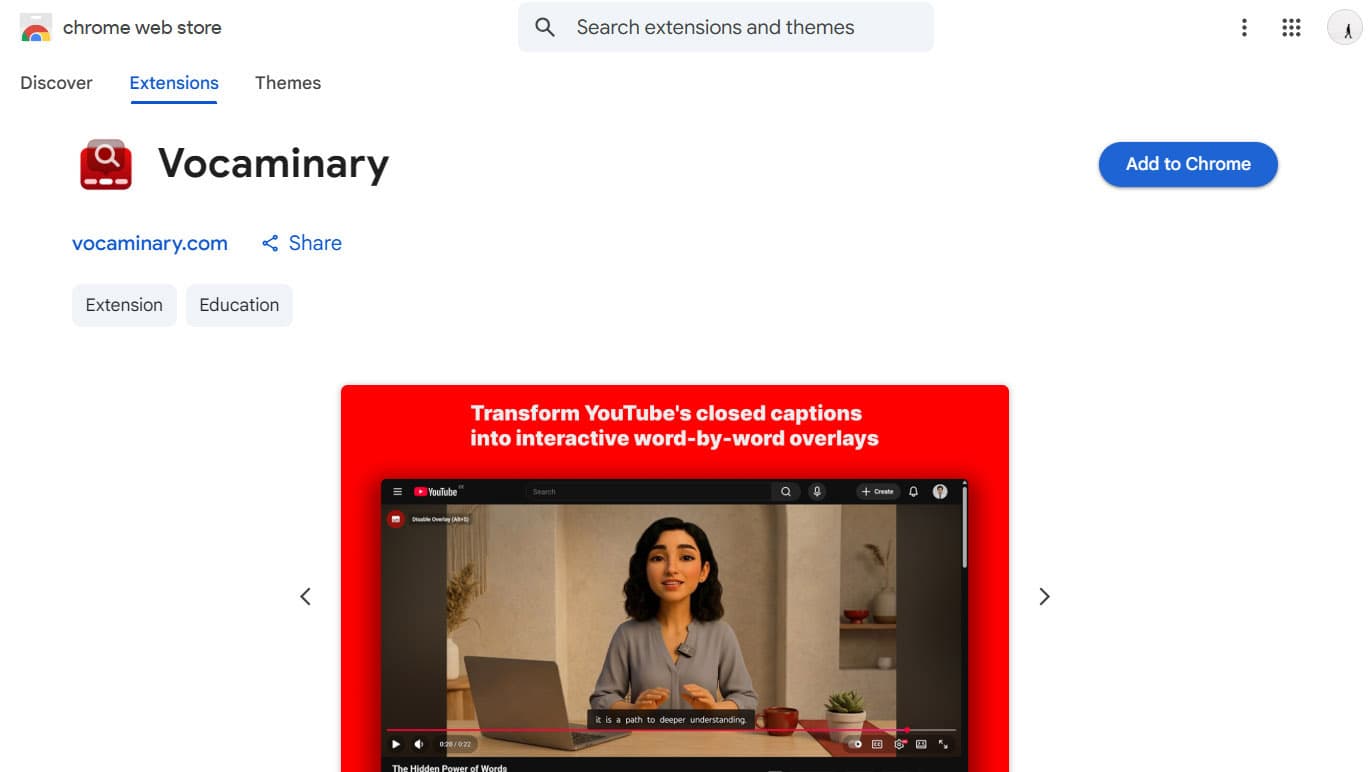
Click 'Add to Chrome'
On the Chrome Web Store page, click the blue 'Add to Chrome' button in the top right corner.
Note: You may see a 'Proceed with caution' warning
If you have Enhanced Safe Browsing enabled in Chrome, you might see this warning before installation. This is normal for newer extensions and doesn't mean Vocaminary is unsafe—it's because the extension is recently published.
Simply click 'Continue to install' to proceed, then follow the remaining steps below.
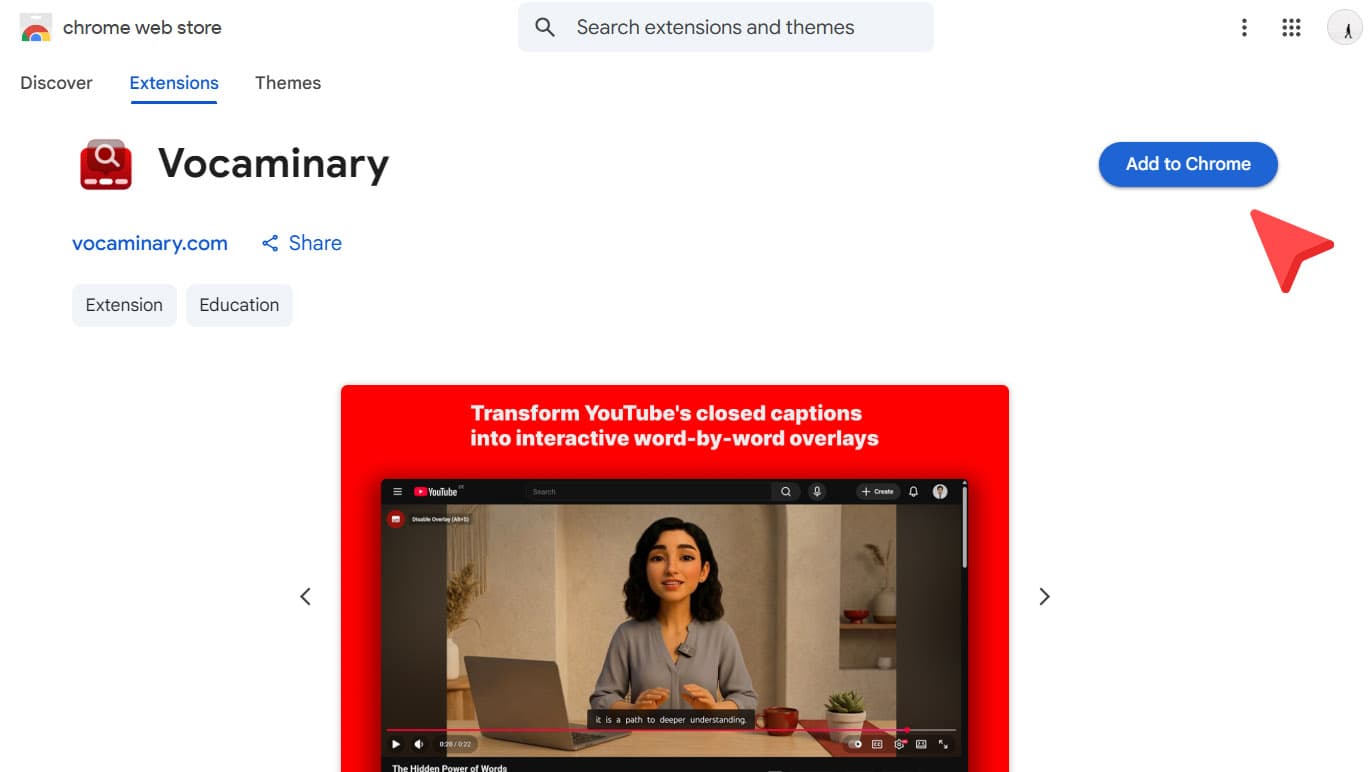
Confirm Installation
A popup will appear asking for permissions. Click 'Add extension' to complete the installation. Vocaminary will be ready to use immediately!
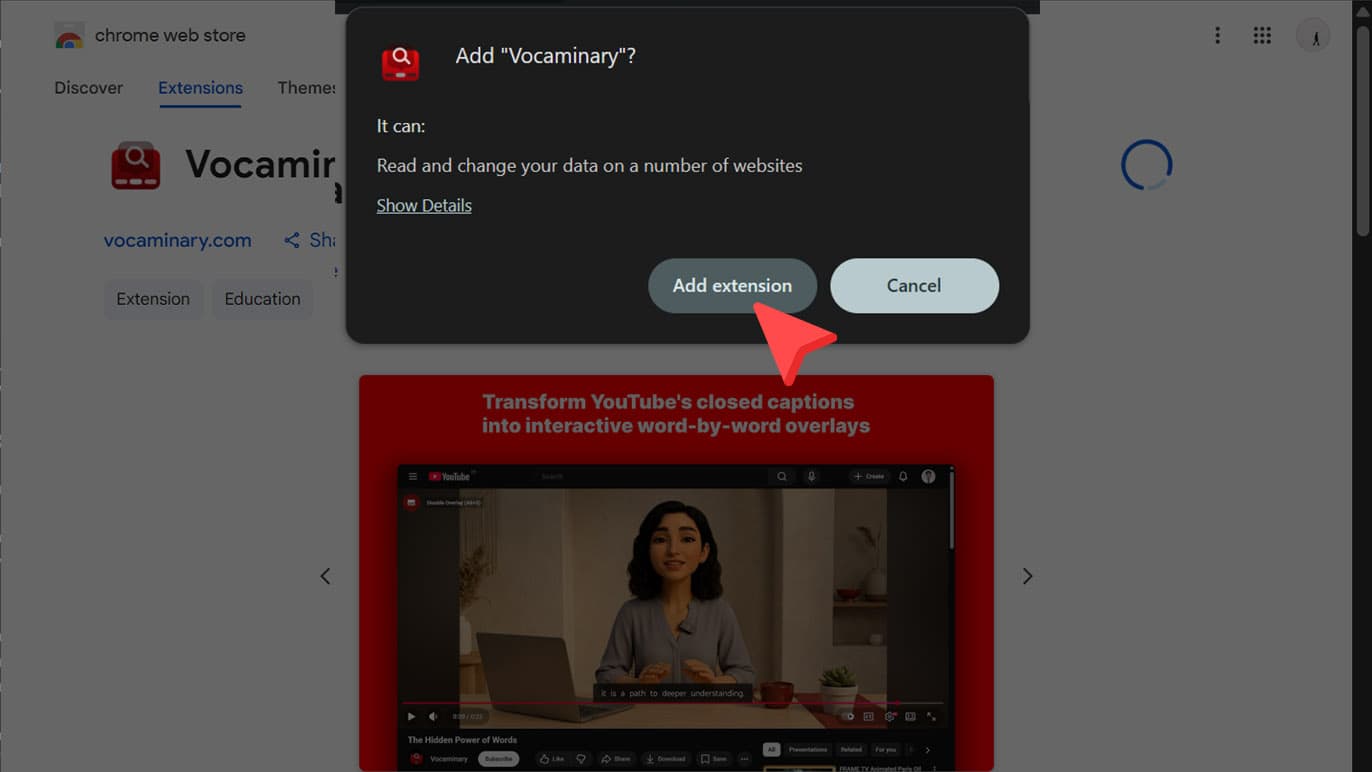
Complete Onboarding
The onboarding page will open automatically after installation. Click 'Get Started' and make your preferred selections for extension settings. This helps personalize your learning experience!
Troubleshooting
Common installation issues and solutions
Can't find the extension after installation
Click the puzzle icon in Chrome's toolbar and pin Vocaminary for easy access. You may need to refresh any open YouTube tabs for the extension to work.
Extension not working on YouTube
Make sure you've refreshed the YouTube page after installing. Clear your browser cache if the issue persists, then reload the page.
Getting permission errors
Vocaminary needs access to YouTube pages to function. Make sure you clicked 'Add extension' when Chrome asked for permissions during installation.
Still need help?
If you're experiencing issues, our support team is here to help. Contact us and we'll get back to you within 24 hours.
Contact Support